
Step 1: Open one already existing Office document, such as Word. Or create and open a new Office document.
Step 2: Select the File -> Options tab.
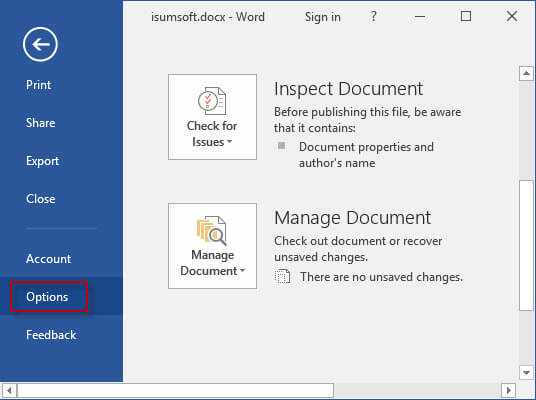
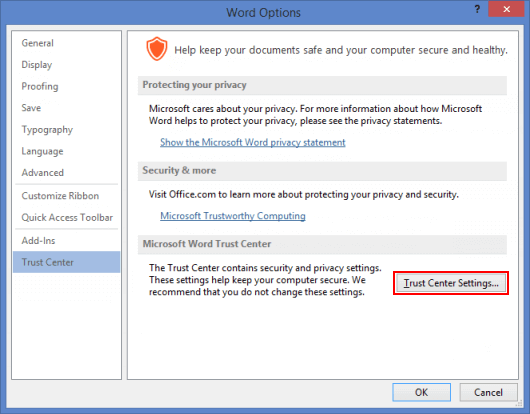
Step 3: After the Word Options dialog opens, select Trust Center on the left-side pane and then click Trust Center Settings button on the right-side pane.
Step 4: After the Trust Center dialog opens, select Protected View. "Protected View" is enabled by default. To disable it, uncheck the boxes next to the corresponding items and click OK. If you want to disable "Protected View" in Excel/PowerPoint 2016, the steps are the same.
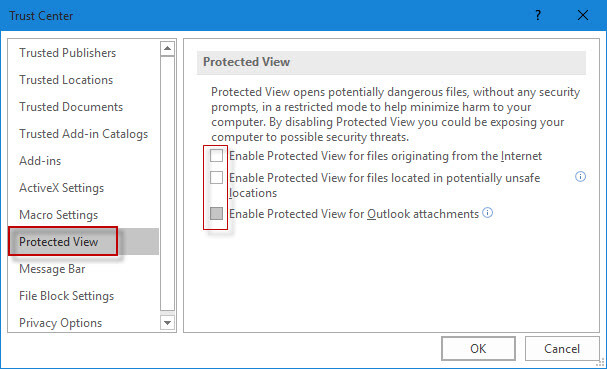
Then you won’t be prompted with the Protected View warning next time when you open an Office file downloaded/received from the internet or other location.
Comments
0 comments
Please sign in to leave a comment.